Schedule with Screenshots
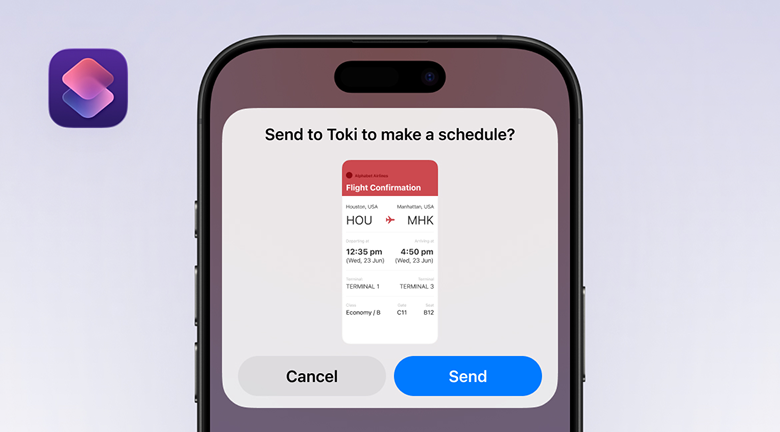
Use the iOS Shortcut to let Toki turn your screenshots into calendar events.
Step 1
Tap the button below, add Screenshot to Toki to Shortcuts.
Step 2
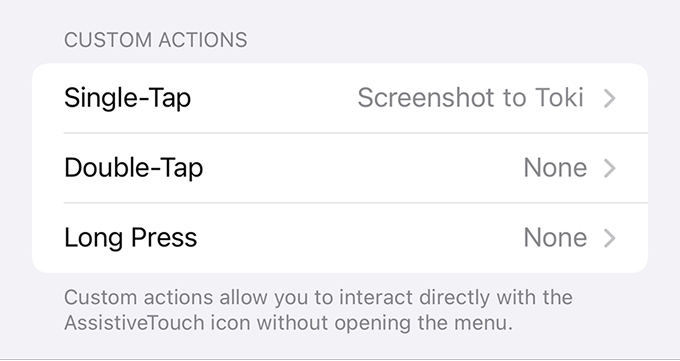
 Use AssistiveTouch
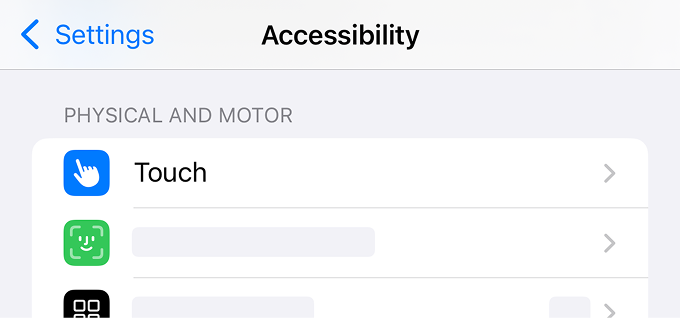
- Go to Settings > Accessibility > Touch.
- Go to AssistiveTouch and turn it on.
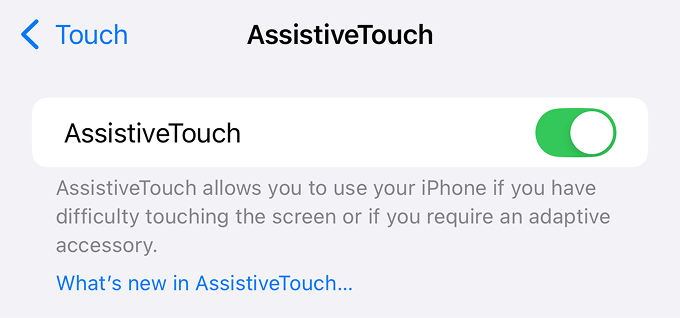
- Select Screenshot to Toki for Single-Tap / Double-Tap / Long Press.
Use Back Tap
- Go to Settings > Accessibility > Touch.
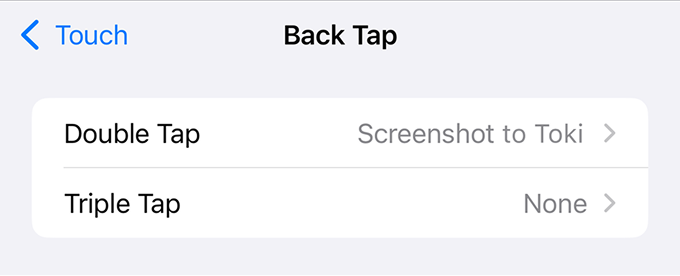
- Go to Back Tap.
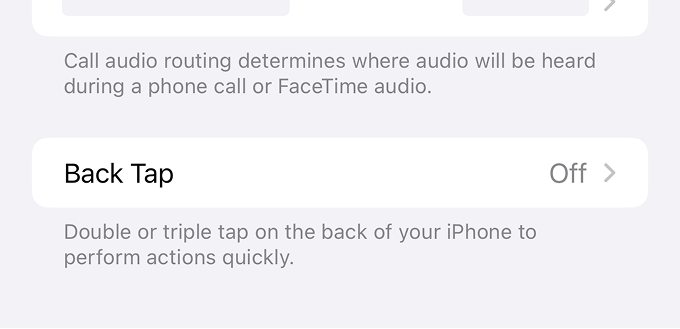
- Select Screenshot to Toki for Double Tap / Triple Tap.